Note: these videos and most of the pictures were made by the upstream Beyond20 project, several years ago. They show an older version of the extension. The roll buttons and the general way it works have not changed, but newer features are not in them. This fork’s own addition is shown in the demo.
The upstream author’s video tour of Beyond20 v0.1:
If you do not want to spend 15 minutes on that, there is a much shorter video of the main features here.
If you do not even have 2 minutes, here are some pictures that show how it works. Click a picture to make it bigger.
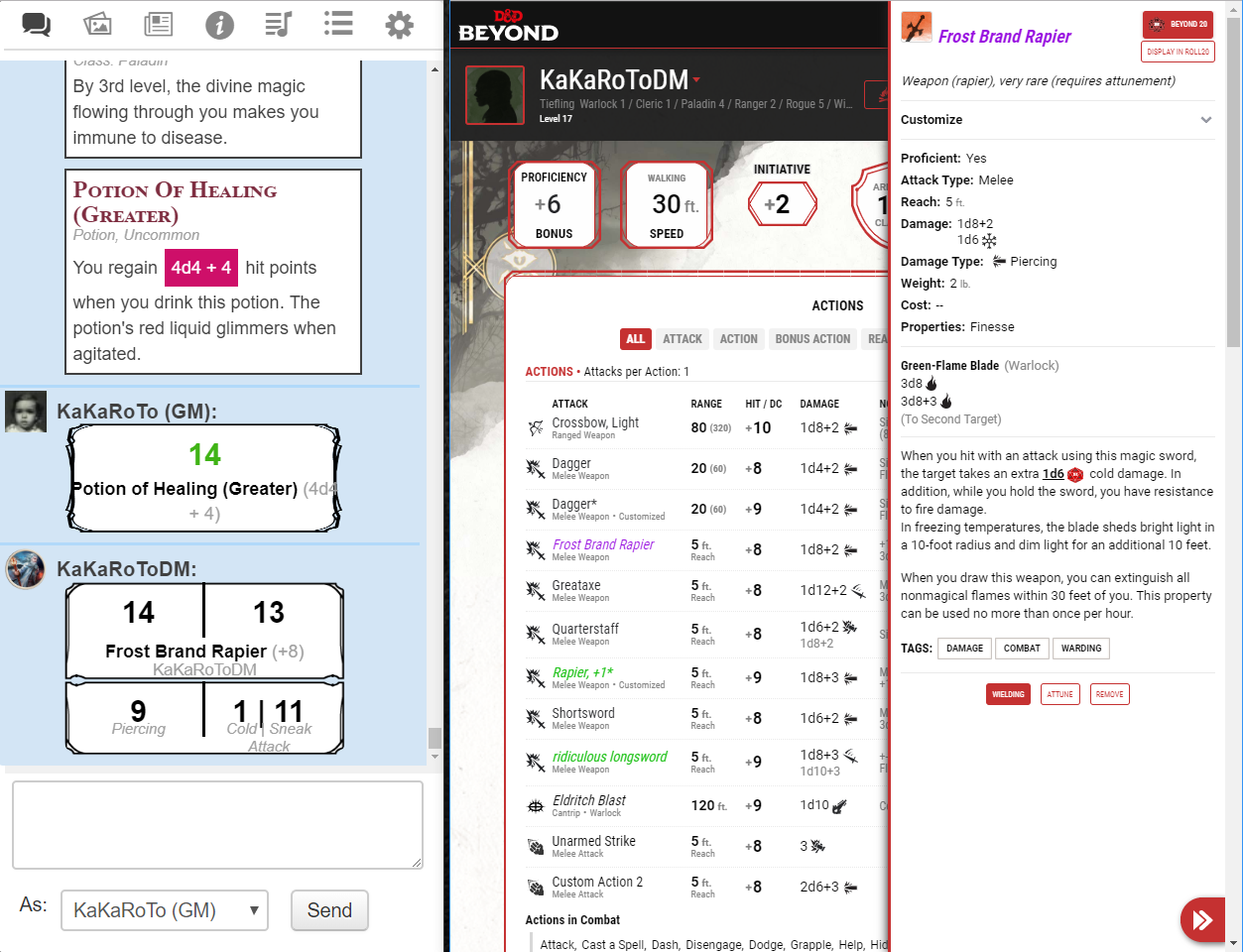
 This picture shows the roll button and the “Display in Roll20” button. Both are added to the side panels. The Roll20 chat shows a class feature, an equipment item, a roll made by clicking the dice in a potion’s description, and an attack from a weapon that deals more than one kind of damage.
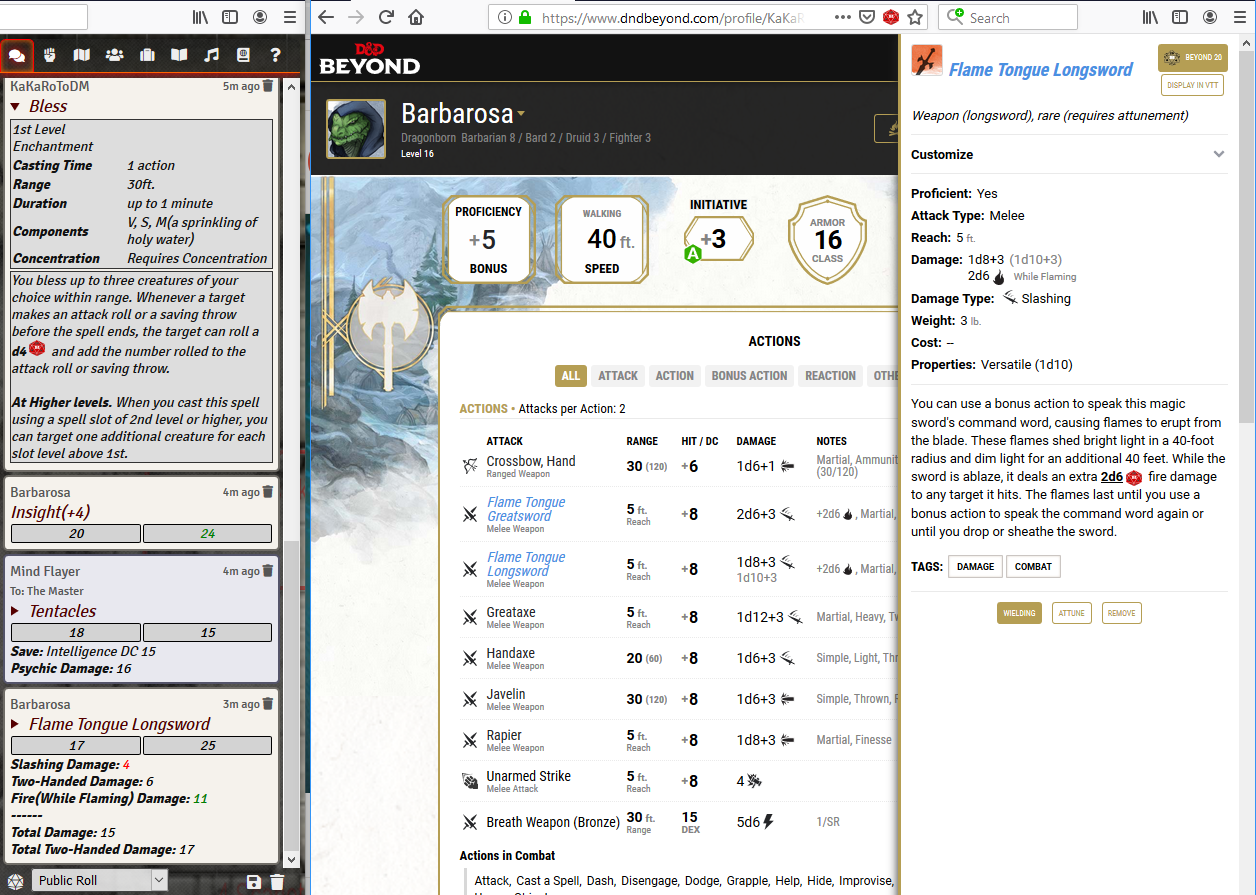
This picture shows Beyond20 (v0.3) on Firefox, sending rolls to Foundry VTT. Roll details appear in a tooltip when you move the mouse over them. Spell cards and weapon descriptions can be opened and closed.
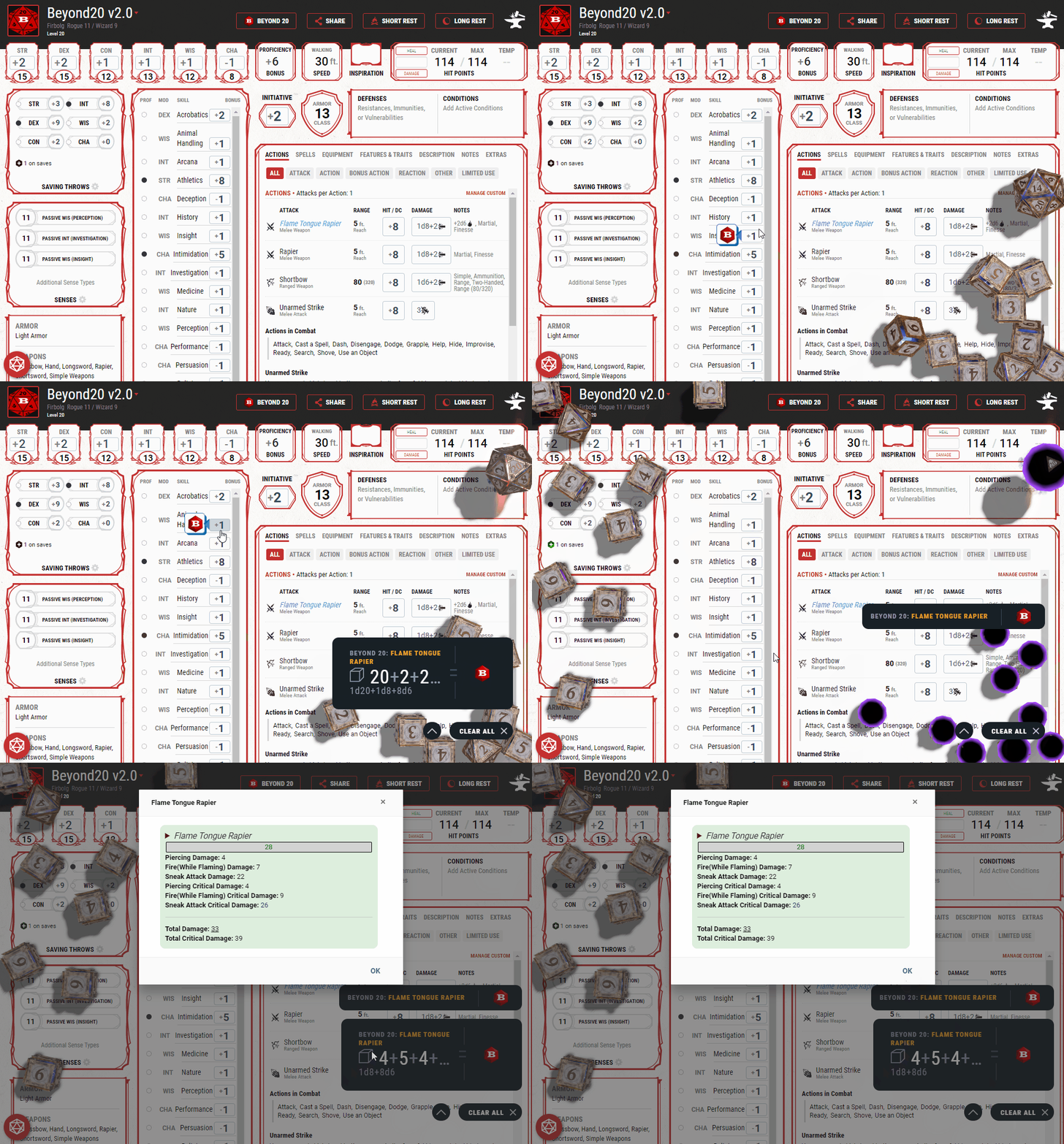
Beyond20 works with D&D Beyond’s Digital Dice. This shows it in action.
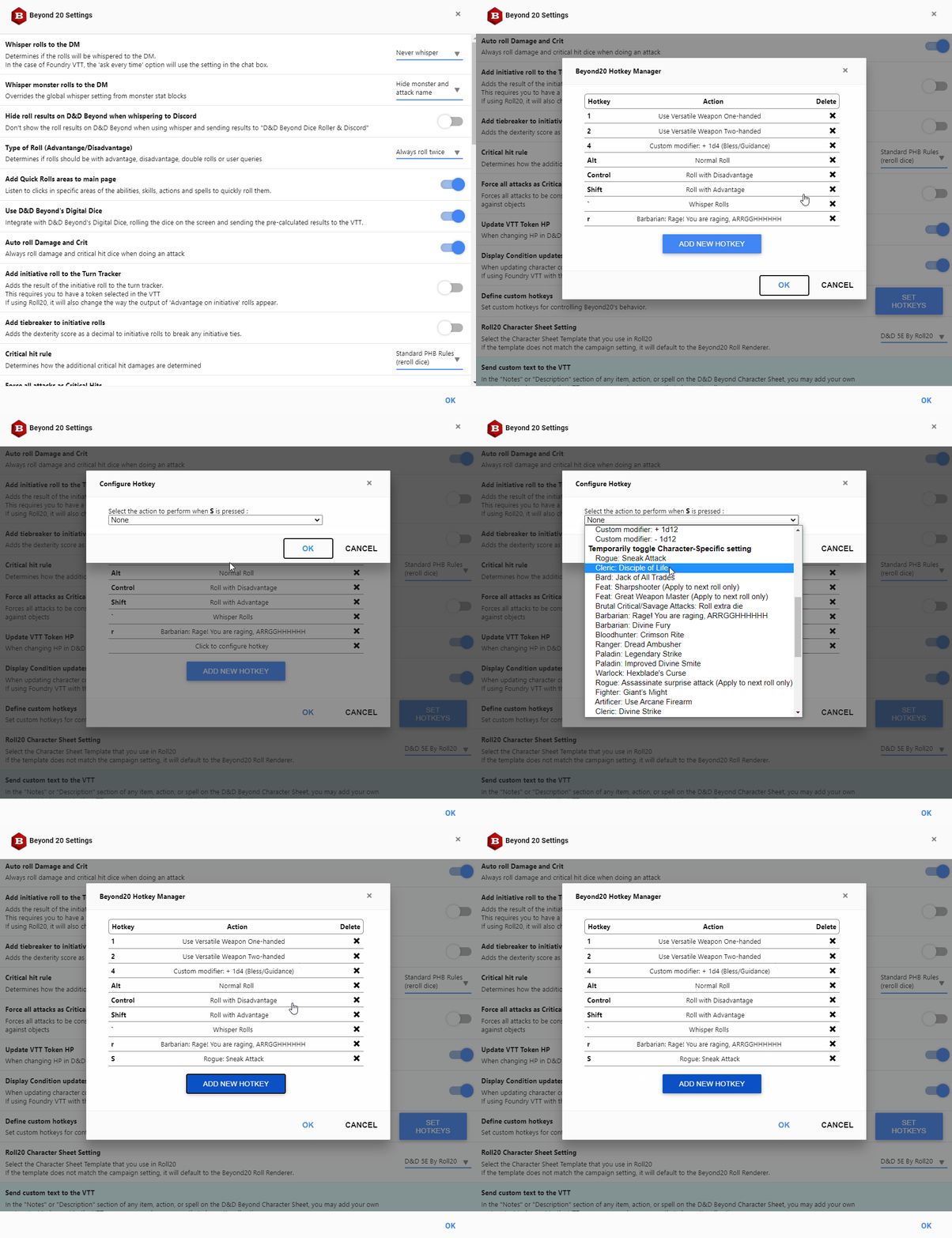
There are many settings, so you can control how your rolls are handled. You can also set hotkeys to turn options, or one character’s class features, on and off.
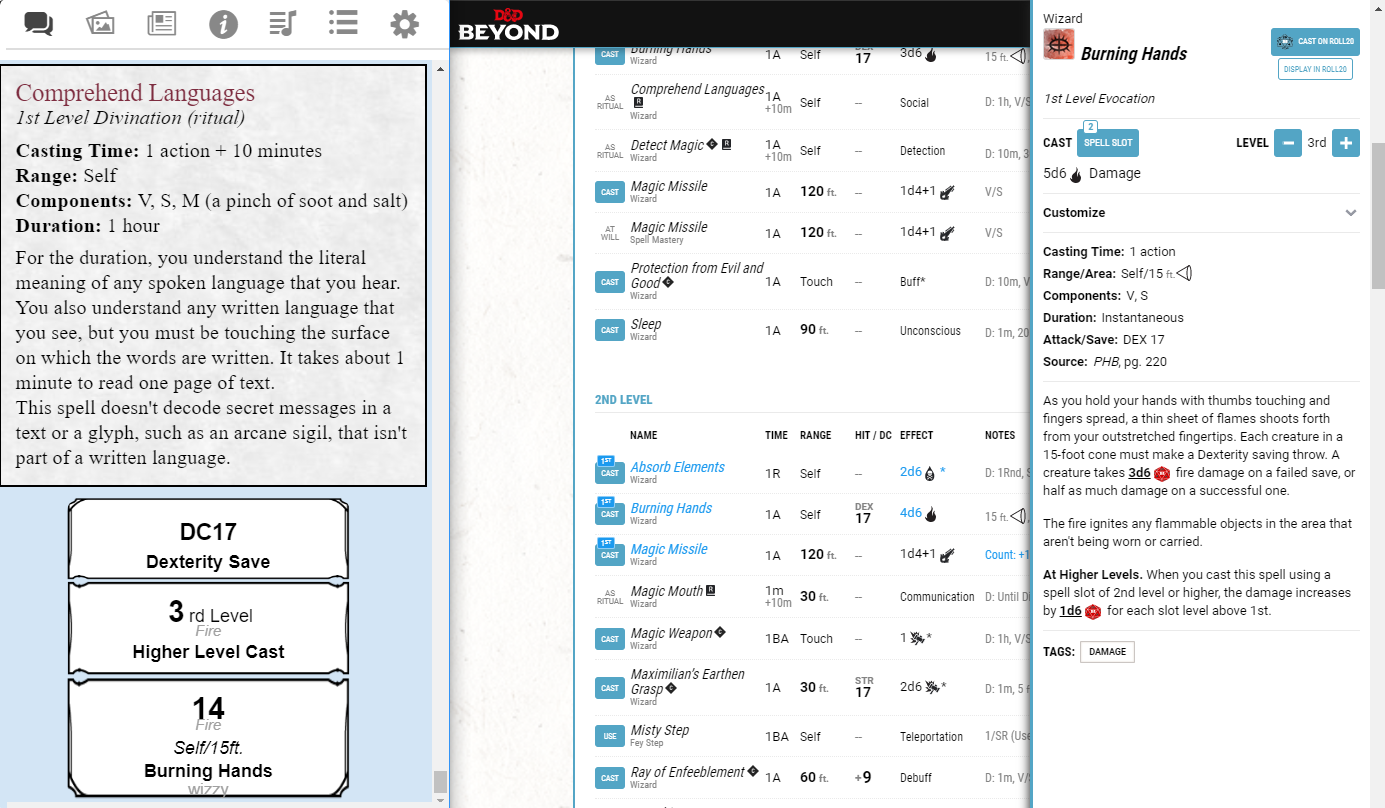
This picture shows a spell card in Roll20, and an attack spell being cast.
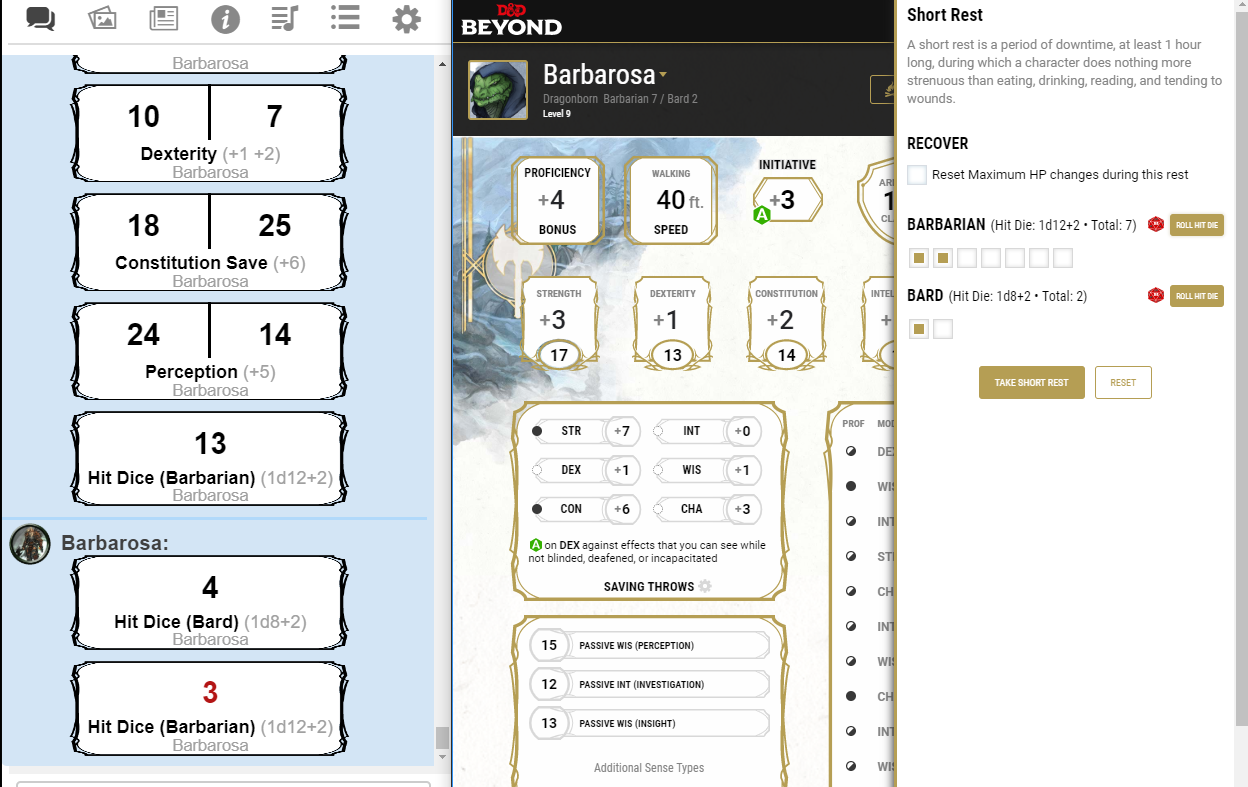
This picture shows the “Roll Hit Die” buttons in the Short rest panel. Multiclassing is supported. You can also see earlier rolls for abilities, saving throws and skill checks.
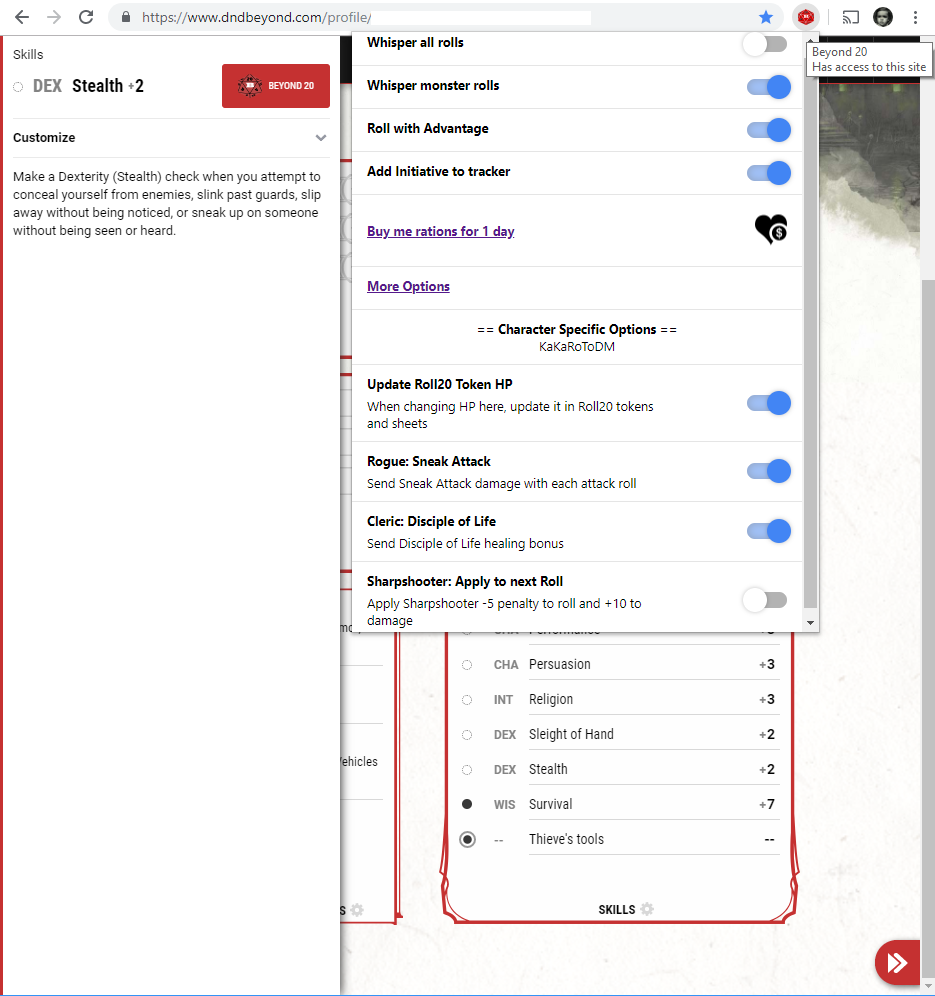
This picture shows the button on the skill check panel, and the popup menu with the options you use most.
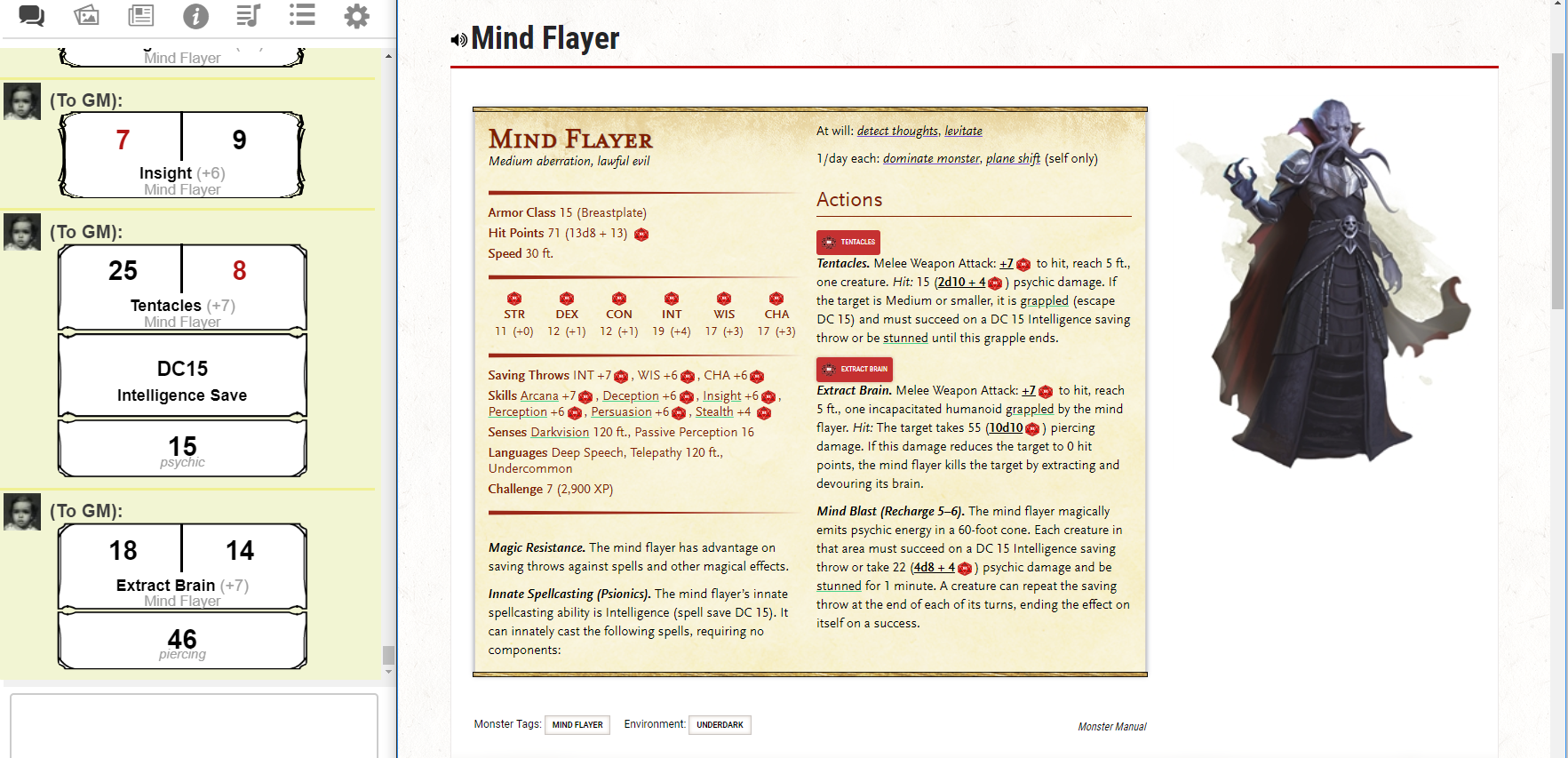
This picture shows a monster page. Every dice in the monster’s stat block can be rolled. An insight check and the monster’s two attacks were rolled here.
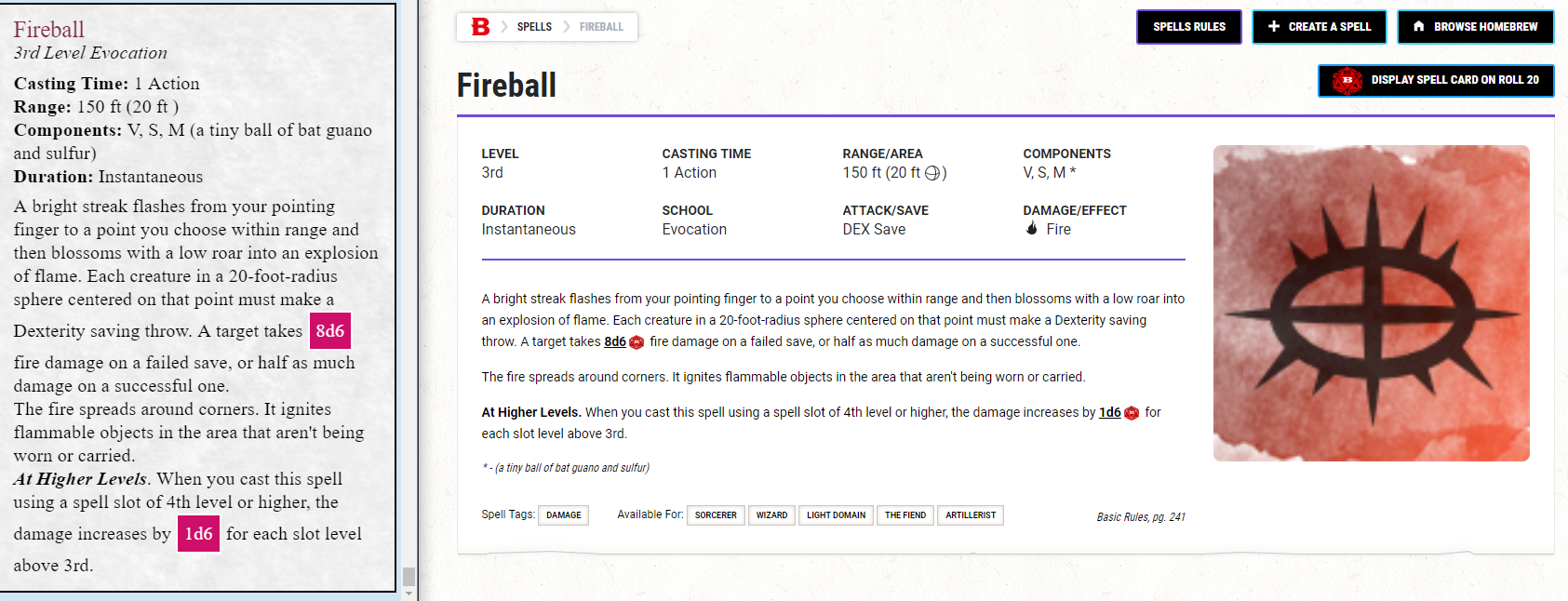
This picture shows a spell page. The dice formulas in the spell description become buttons by themselves. There is also a “Display spell card on Roll20” button. The spell card appears on the left, as it looks in Roll20.
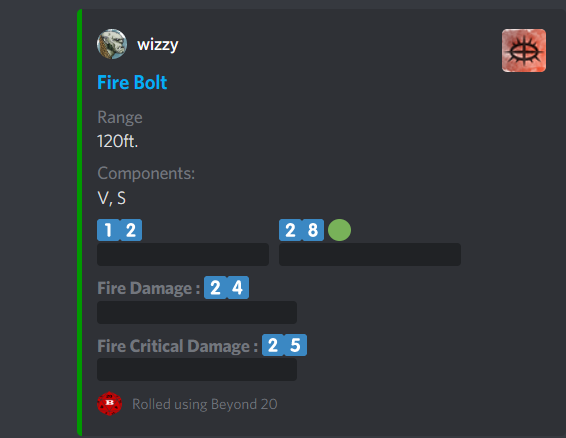
This picture shows a roll sent to Discord. The dice formulas are hidden behind spoiler tags. The roll was a critical hit, so the side shows in green.
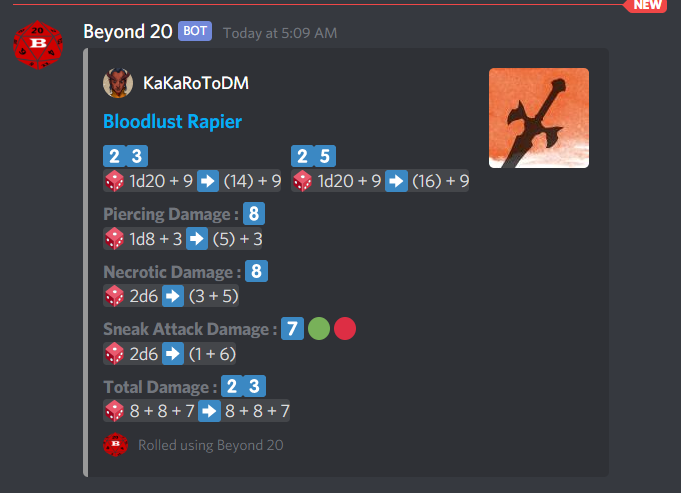
This is the same roll after clicking the spoiler tags, so the dice formulas are shown.